
Lenovo ThinkPad X9 15 Aura Edition for Students: 2026 Review
Fact-checked: August 13, 2026 | Review type: Research-based, configuration-aware buying guide
Short answer: The Lenovo ThinkPad X9 15 Aura Edition suits students who will use its 2.8K OLED, long battery life, 1.4kg starting weight, strong webcam and security. It is poor value for basic coursework at full price, and fixed memory makes the 16GB-versus-32GB decision critical.
A much cheaper laptop can write essays, join classes and browse research sites. The X9’s advantage is its unusual combination of a spacious 15.3-inch display, an 80Wh battery and a chassis lighter than many budget notebooks—not the “AI PC” label alone.
This 2026 review evaluates the original ThinkPad X9 15 Gen 1 as it exists now; it did not debut in 2026. Lenovo announced it at CES 2025 and began selling it in February 2025. Lenovo has since introduced the faster ThinkPad X9 15p Gen 1 for 2026, so buyers must distinguish “X9 15” from “X9 15p.”
 Slim 7i Aura 14 OLED
$1,194.53
Slim 7i Aura 14 OLED
$1,194.53
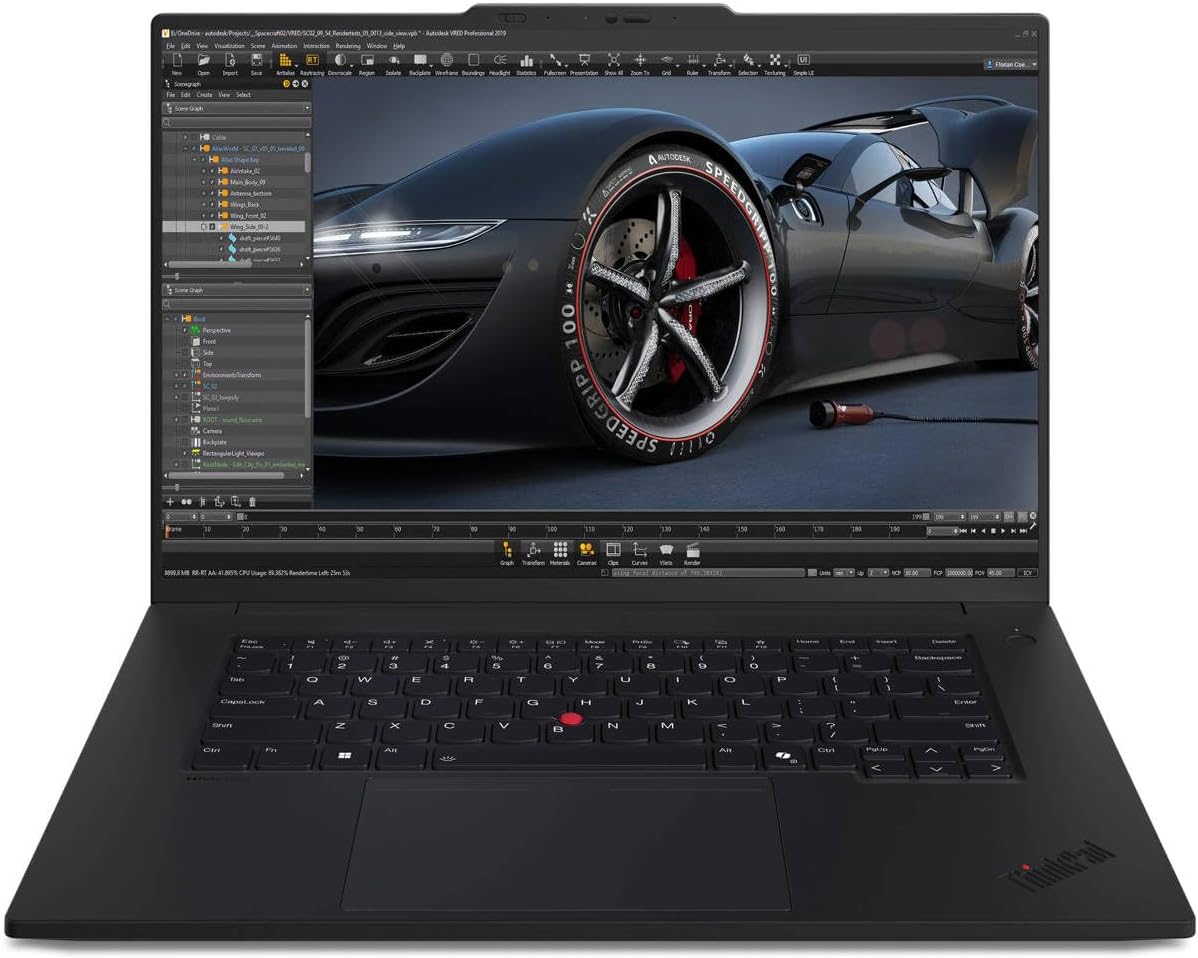 ThinkPad P1 Gen 7
$2,644.30
ThinkPad P1 Gen 7
$2,644.30
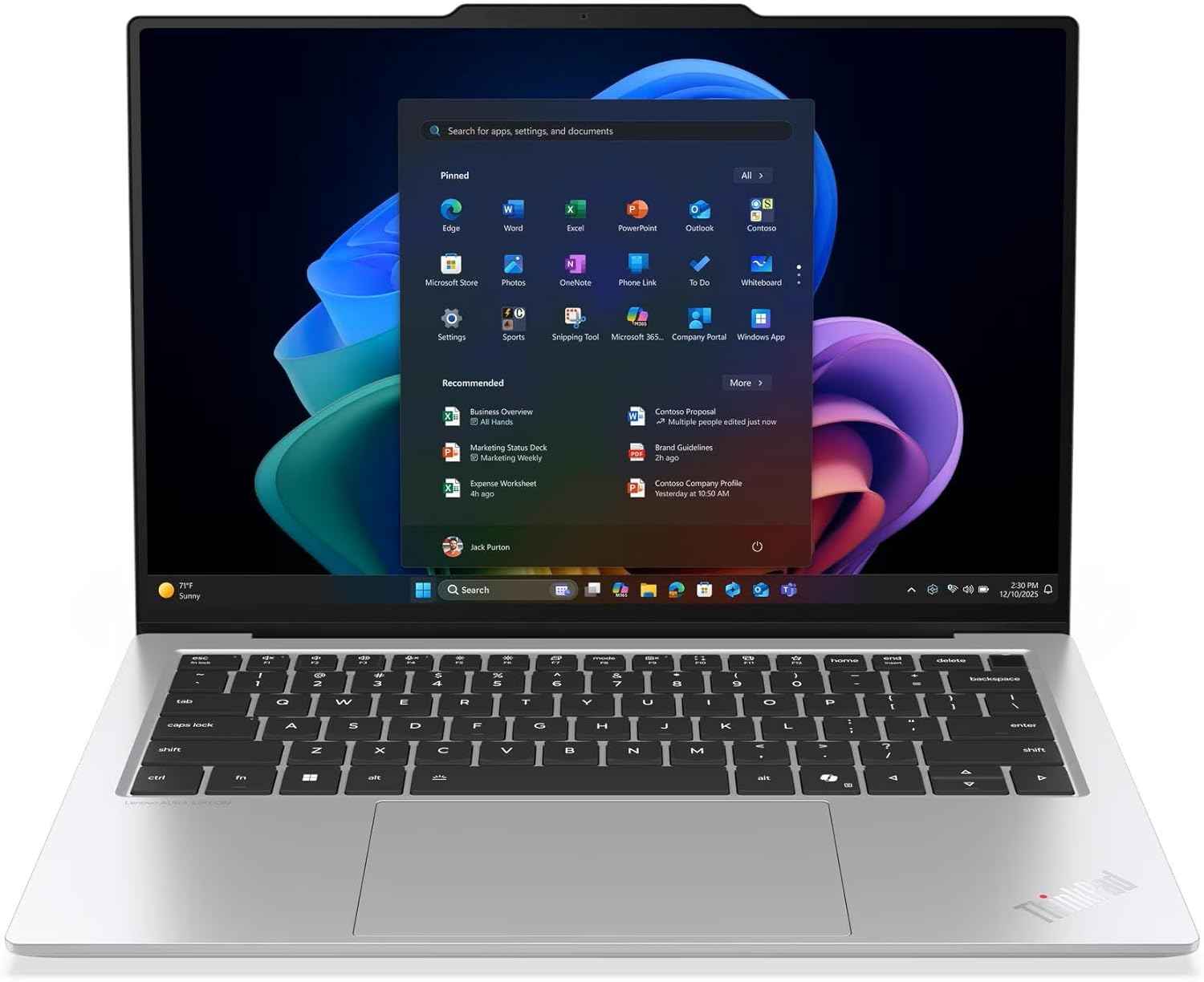 ThinkPad X9 14 Aura
$1,299.99
ThinkPad X9 14 Aura
$1,299.99
 ThinkPad X9 Ultrathin
$1,429.99
ThinkPad X9 Ultrathin
$1,429.99
 Legion Pro 7i RTX 5070 Ti
$1,894.11
Legion Pro 7i RTX 5070 Ti
$1,894.11
 ThinkPad X9 14 2TB
$1,489.95
ThinkPad X9 14 2TB
$1,489.95
 Legion 5i RTX 5070
$1,669.99
Legion 5i RTX 5070
$1,669.99
 ThinkPad X9 Gen 1
$1,029.99
ThinkPad X9 Gen 1
$1,029.99
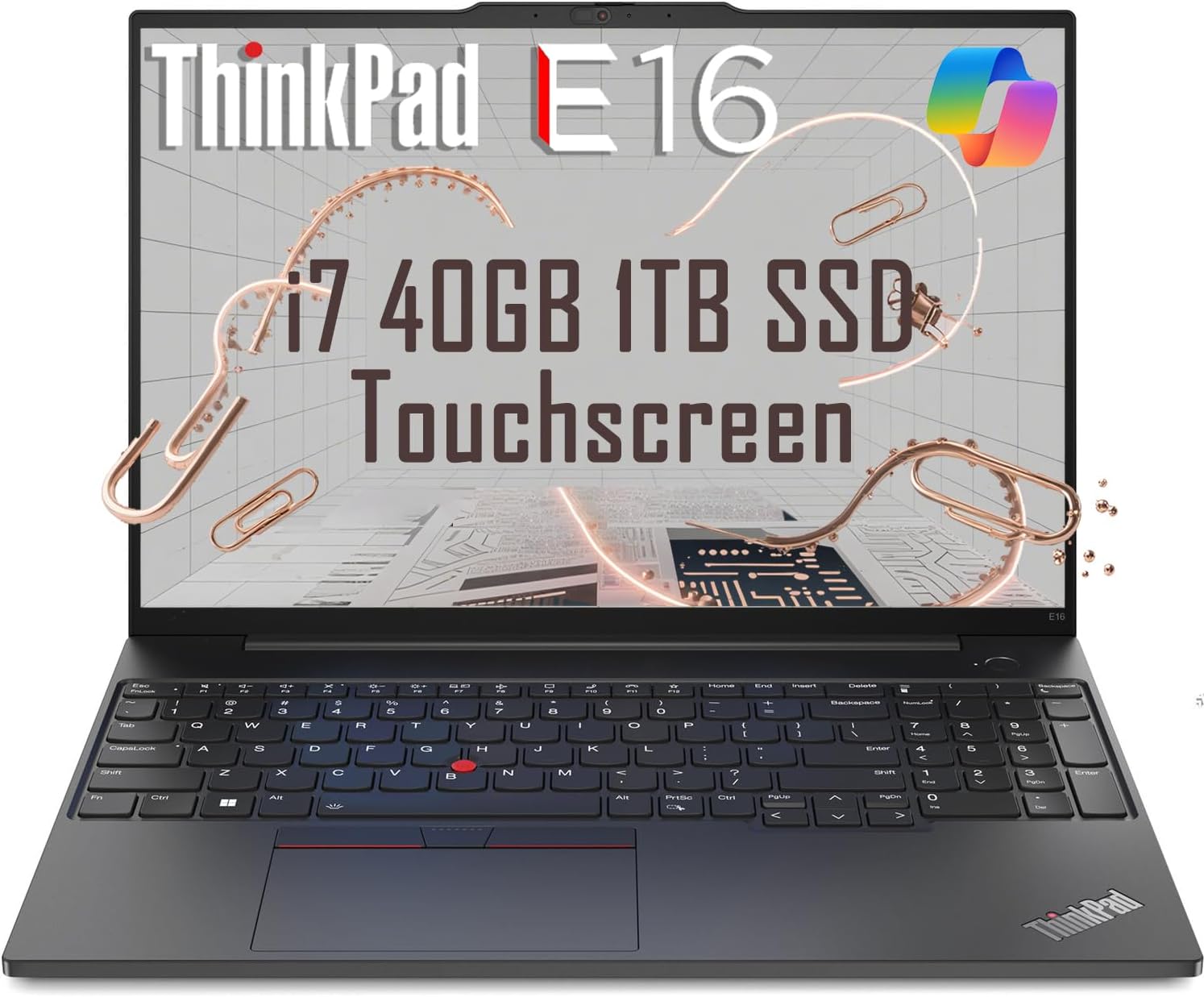 ThinkPad E16 40GB RAM
$1,199.99
ThinkPad E16 40GB RAM
$1,199.99
 ThinkPad E16 Gen 2 AI
$999.00
ThinkPad E16 Gen 2 AI
$999.00
 Sponsored Ad – Amazon.com
ThinkPad X9 15 product status in 2026
The ThinkPad X9 15 Gen 1 is a 2025 premium ultrabook built around Intel Core Ultra Series 2 “Lunar Lake” processors. Lenovo still lists it in major markets in August 2026, but it is no longer the newest large X9.
The 2026 ThinkPad X9 15p Gen 1 adds Series 3 processors, up to 64GB RAM, faster graphics, an 88Wh battery and an M.2 2280 SSD. It is heavier and typically more expensive. The original can offer better Office-and-battery value; the 15p better suits sustained CPU/GPU work.
ThinkPad X9 15 specifications
The reference configuration below matches Lenovo SKU 21Q60029US and the major hardware in Notebookcheck’s test unit. Verify every purchase against Lenovo’s PSREF; processor, memory, storage, touch, operating system and warranty vary.
Reference configuration: Core Ultra 7 258V, 32GB RAM, 1TB SSD and touch OLED Scroll sideways to compare all columns →
| Specification | Reviewed configuration | Other verified options | Student relevance |
|---|---|---|---|
| Processor | Intel Core Ultra 7 258V; 8 cores/8 threads; up to 4.8GHz | Selected Core Ultra 5, 7 and 9 Series 2 SKUs | Efficient and responsive; sustained multicore work is not workstation-class |
| Graphics and NPU | Intel Arc 140V; Intel AI Boost NPU, 47 TOPS | Arc 130V and 40-TOPS NPU on selected Core Ultra 5 models | Good for media, light creative work and Copilot+ features; no CUDA |
| Memory | 32GB LPDDR5X-8533 | 16GB or 32GB, tied to processor/SKU | Not upgradeable; choose capacity before purchase |
| Storage | 1TB PCIe 4.0 NVMe M.2 2242 SSD | 256GB, 512GB, 1TB or 2TB | One replaceable slot; 1TB suits large course libraries and projects |
| Display | 15.3-inch 2880×1800 OLED, touch, 30–120Hz VRR | Same 2.8K OLED without touch | Large, sharp workspace; glossy surface can reflect bright rooms |
| Camera and audio | 8MP IR camera, e-shutter, dual mics, four speakers | Feature details can vary by SKU | Stronger than a typical 1080p webcam for classes and interviews |
| Connectivity | 2× Thunderbolt 4, USB-A, HDMI 2.1, audio jack, Wi-Fi 7, Bluetooth 5.4 | No built-in Ethernet, SD reader or mobile broadband | Useful essentials; photographers and wired-network users may need an adapter |
| Battery and charger | 80Wh; 65W USB-C GaN adapter | Adapter type and inclusion vary by market | Charges from either side; third-party charger must support adequate USB-C PD |
| Size and weight | Starting at 1.4kg; 339.55 × 228.5 × 12.9mm | Actual weight can vary | Exceptionally light for a 15-inch-class laptop |
| Software and security | Windows 11 Pro; TPM 2.0; fingerprint; IR face login | Windows 11 Home, Pro or Linux in selected markets | Microsoft Office is not automatically a permanent license |
Configurations explained: 16GB or 32GB?
Sixteen gigabytes is enough for Office, ordinary spreadsheets, video calls and moderate browser multitasking. It makes sense when the discount is meaningful and future work will not include virtual machines, large datasets or demanding creative tools.
Choose 32GB for computer science, heavier data work, Docker, WSL, large photo libraries or modest local AI. Memory is integrated with the processor package and cannot be replaced. Buying too little turns an expensive laptop into a fixed constraint.
Design, portability and the redesigned ThinkPad experience
The aluminum X9 has a thin profile and a raised rear “engine hub” for ports and cooling. MIL-STD-810H testing does not make it waterproof or drop-proof; use a padded sleeve.
At roughly 1.4kg, it provides a 15.3-inch workspace without gaming-laptop weight—useful for split-screen research, code and spreadsheets. Commuters in crowded rooms should still compare the smaller Lenovo Yoga Slim 7i Aura Edition.
Is it still a “real ThinkPad”?
It retains ThinkPad security and support but drops the red TrackPoint, its buttons and the classic function-key grouping. The keyboard has 1.35mm travel and no numeric keypad. New users may prefer the huge glass haptic touchpad, which clicks consistently anywhere.
FrediTech’s detailed ThinkPad X9 15 Aura Edition review also frames it as premium productivity hardware rather than a conventional service-friendly ThinkPad. Lenovo and independent tests confirm the OLED, low weight, battery strength, missing TrackPoint and fixed memory.
OLED display: excellent, with real trade-offs
Every verified X9 15 panel is a 15.3-inch 2880×1800 OLED with a 16:10 ratio, 500-nit SDR rating, factory calibration, 100% DCI-P3 coverage and 30–120Hz variable refresh. Touch is optional; pen input is unsupported.
The panel is glossy despite its anti-reflection treatment. Bright windows and overhead lights can remain distracting. Notebookcheck measured PWM flicker at 1200Hz below 77% brightness; the high frequency reduces risk for many people, but students known to be flicker-sensitive should view the laptop in person or buy from a seller with a practical return policy.
There are not separate 60Hz and 120Hz display options: the same 120Hz-capable panel can be set to 60Hz. The higher rate makes scrolling and animation smoother, while 60Hz extends battery life. OLED image retention is possible after prolonged static use but is not inevitable. Keep Windows and Lenovo panel-protection features enabled, use sensible sleep timing and avoid leaving a bright taskbar or IDE unchanged for days.
Keyboard, touchpad, webcam and speakers
The keyboard is comfortable for essays and coding, although traditional ThinkPad keyboards offer deeper travel and more familiar navigation keys. The haptic touchpad is a standout: its large 135×80mm surface provides accurate gestures without a hinged “dead zone.”
The 8MP IR webcam is unusually sharp for a laptop and supports Windows Hello and Windows Studio Effects. An electronic shutter disables the camera. Four speakers provide clear, powerful sound for lectures, calls and media, though headphones remain better in shared study spaces.
Ports and connectivity
Two Thunderbolt 4 ports support charging, data and external displays, with one on each side. HDMI 2.1 connects to many classroom displays; USB-A handles a conventional flash drive or mouse; the 3.5mm jack supports a headset. Wi-Fi 7 and Bluetooth 5.4 are current standards. There is no SD-card slot, Ethernet port or cellular option, so photography, lab or wired-campus workflows may require a compact hub.
Performance for real student workloads
The Core Ultra 7 258V combines four performance and four low-power cores with Arc 140V graphics. It prioritizes responsiveness and efficiency. Independent testing found strong everyday performance but average sustained multicore speed; long renders and repeated compilations favor the X9 15p or a performance laptop.
It has ample headroom for 10–20 tabs, Office, PDFs, cloud sync and a video call. Cheaper 16GB laptops can feel similarly responsive; the premium mainly buys the display, battery, camera, build and weight.
Student software suitability Scroll sideways to compare all columns →
| Software or task | Suitability | RAM advice | Main limitation |
|---|---|---|---|
| Chrome/Edge, Word, PowerPoint, OneNote | Excellent | 16GB+ | A cheaper laptop can perform these tasks well |
| Large Excel files, SPSS/R, research databases | Strong | 32GB preferred | Very large analyses can need more CPU or cloud resources |
| VS Code, Python, Java, web development | Strong | 16GB basic; 32GB for Docker/WSL | No RAM upgrade later |
| Photoshop, Lightroom-style work, Canva | Strong for light/moderate work | 32GB preferred | Integrated GPU and glossy display |
| 1080p and short 4K video projects | Acceptable to strong | 32GB | Long effects-heavy projects are slower |
| AutoCAD, Blender, engineering simulation | Introductory/light only | 32GB | No discrete GPU; verify course requirements |
| Local AI and machine learning | Small inference workloads | 32GB | No NVIDIA CUDA; not for training large models |
| Casual and older games | Acceptable at adjusted settings | 16GB+ | Not a gaming laptop |
Which students benefit most?
Business, accounting and finance: An excellent fit for spreadsheets, reports, interviews and placements. Frequent data-entry users should note the missing numeric keypad.
Humanities, social science and education: Excellent for long writing and research, but the premium needs daily justification. The best budget laptops for students can complete the same assignments.
Computer science and IT: Good for web development, Python, Java, Git, WSL and moderate containers with 32GB. Several virtual machines, GPU programming or game development favor a higher-power option such as the Lenovo Legion Pro 7i.
Science, health science and data science: Strong for research, statistics, Jupyter and moderate datasets; advanced simulation or CUDA machine learning needs workstation, server or cloud resources.
Creative studies: The calibrated P3 OLED benefits photography and design. Integrated graphics suit moderate editing, not professional 4K/8K production or sustained 3D rendering.
What does “Aura Edition” actually mean?
Aura Edition is Lenovo and Intel’s experience bundle, not a processor class. Smart Modes adjust attention, collaboration, privacy and power settings; Smart Share/Smart Connect handles compatible phone transfers. Behavior depends on software, devices and region.
The CPU runs general software, the Arc GPU accelerates graphics and media, and the 47-TOPS NPU efficiently handles compatible AI effects. NPU TOPS is not an overall performance score.
The NPU exceeds Microsoft’s 40-TOPS Copilot+ PC threshold. Experiences include Studio Effects, semantic search, Live Captions and Click to Do. Recall is optional and removable. Language, region, school policy and Windows build affect availability.
Practical benefits include webcam effects, local text/image actions and efficient inference. Copilot+ does not make the X9 suitable for training large models. A 32GB unit can experiment with small quantized models, within software and shared-memory limits.
Battery life, charging, heat and security
Battery evidence
Lenovo’s July 2026 PSREF lists about 20–21 hours in MobileMark 30 and 28–30 hours of local video for selected configurations. These controlled maxima are not promised classroom runtime.
Notebookcheck’s 32GB test unit lasted 17:28 in 150-nit Wi-Fi browsing at 60Hz and 15:35 at 120Hz. Maximum-brightness results were 9:29 and 8:56; a 1080p video loop reached 22:58.
That supports a light full study day, but meetings, brightness, coding and battery aging reduce endurance. Use 60Hz when runtime matters more than smooth scrolling.
Charging, heat and fan noise
The 65W GaN adapter charges from either side. Independent testing reached 80% in 74 minutes and full charge in 115 minutes. Lower-power USB-C chargers may be slow.
The fans generally remain off at idle and during simple work. Under heavier CPU loads, independent testing recorded roughly 35–39dB(A), briefly higher in maximum-performance mode. Balanced and efficiency modes are more library-friendly. Surface temperatures stayed reasonable in the same stress test, with the bottom remaining below 40°C.
Security, software and repairability
TPM 2.0, fingerprint login, IR face recognition, the camera e-shutter and Lenovo BIOS protections are useful for protecting coursework and internship data. They do not replace strong passwords, multifactor authentication, encryption and backups.
Windows 11 Home or Pro is included depending on SKU. Microsoft 365 or a permanent Office license is separate unless the seller explicitly includes one. The battery and single M.2 2242 SSD can be replaced after removing the base; RAM and other main components are onboard. If you need a convertible for handwritten notes, compare the HP Envy x360 13 student review, because the X9 display does not support a pen.
Price, worldwide availability and value
Official starting prices below were visible on August 13, 2026. They do not necessarily represent the 32GB/1TB reference configuration, and Lenovo changes promotions frequently. Compare the final basket price, tax, warranty, keyboard layout and return policy.
Official Lenovo X9 15 starting prices checked August 13, 2026 Scroll sideways to compare all columns →
| Market | Advertised starting price | What to verify |
|---|---|---|
| United States | US$1,689 | CPU, RAM, SSD, touch and warranty; 21Q60029US was listed at US$2,499 |
| United Kingdom | £1,617.40 | VAT, education price and keyboard layout |
| Canada | C$2,359 | Configuration and promotional terms |
| Australia | A$2,499 | Shipping, warranty and charger |
| Netherlands | €1,943.21 | Promotion, tax and keyboard language |
Lenovo education stores and verification methods differ by market; a “student and teacher price” may require membership and may not combine with a promotion. Never assume the largest percentage badge is the best deal. Compare final prices for identical CPU, RAM, storage, display and warranty.
Current alternatives
Alternatives checked in August 2026; prices are illustrative starting prices, not converted currencies Scroll sideways to compare all columns →
| Alternative | Current reference price | Choose it for | Main trade-off |
|---|---|---|---|
| ThinkPad X9 15p Gen 1 | About US$1,999 announced starting price | Faster Series 3 CPU/GPU, up to 64GB and stronger creative performance | Higher cost and weight |
| Apple MacBook Air 15 M5 | From £1,299; £1,199 education in the UK | Fanless operation, strong performance, battery and macOS | No OLED/touch; Windows-only course software may not work |
| Surface Laptop 15 (8th Edition) | From £1,549 in the UK | Current Copilot+ platform and clean Windows integration | Heavier; configuration and app compatibility need checking |
| ThinkPad X1 Carbon Gen 14 | From £2,088.60 in the UK | Smaller 14-inch portability and traditional business focus | Smaller screen and high premium |
| ASUS Zenbook S 16 UM5606 | Around £1,399.99 for a listed 32GB model | Large 3K OLED and competitive specification value | Different support, keyboard and business-security priorities |
| Acer Aspire 5 | Configuration-dependent budget/midrange tier | Much lower cost for everyday schoolwork | Less premium display, camera, build and battery on many models |
For a lower-cost Windows benchmark, read the Acer Aspire 5 review for students. The X9 should win because its premium qualities matter to you—not merely because it costs more.
Pros and cons
Pros
- Large, accurate 2.8K 120Hz OLED
- Excellent independently tested battery life
- Very light for its screen size
- Strong 8MP webcam and four-speaker audio
- Comfortable keyboard and superb haptic touchpad
- Thunderbolt 4 on both sides, HDMI and USB-A
- Useful Windows Hello and business security
Cons
- Expensive for ordinary coursework
- RAM cannot be upgraded
- No TrackPoint or classic ThinkPad keyboard layout
- Glossy OLED may reflect bright surroundings
- No SD reader, Ethernet or cellular option
- Integrated GPU is not for CUDA or demanding 3D work
- Newer X9 15p complicates its 2026 value
Student value scorecard
Method: 1 = poor, 2 = weak, 3 = acceptable, 4 = strong, 5 = excellent. Scores evaluate the verified 32GB/1TB Core Ultra 7 configuration for student use; they are editorial categories, not customer ratings.
| Category | Score | Reason |
|---|---|---|
| Basic schoolwork and multitasking | 5 | Fast and spacious, though cheaper laptops also do this well |
| Coding and data analysis | 4 | Strong with 32GB; average sustained multicore speed |
| Creative and engineering work | 3 | Great display, but integrated graphics set the ceiling |
| AI usefulness | 3 | Useful Copilot+ features; limited large-model capability |
| Display and reading | 5 | Sharp, large and color accurate; glossy with PWM caveat |
| Keyboard and touchpad | 4 | Excellent touchpad; keyboard changes divide ThinkPad users |
| Webcam, speakers and wireless | 5 | 8MP IR camera, strong audio, Wi-Fi 7 and Bluetooth 5.4 |
| Ports | 4 | Core ports are covered, but no SD, Ethernet or WWAN |
| Security | 5 | Strong sign-in, camera and platform-security features |
| Battery and charging | 5 | Excellent measured endurance and compact USB-C charging |
| Portability, noise and thermals | 4 | Very light and cool; fans audible under sustained load |
| RAM flexibility and repairability | 2 | RAM fixed; battery and one SSD are replaceable |
| Mainstream student value | 3 | Premium features are unnecessary for many students |
| Premium productivity value | 4 | Strong when discounted below newer premium competitors |
Buying checklist and red flags
- Get the exact machine type or SKU; confirm whether it is X9 15 or X9 15p.
- Verify the full processor name, installed RAM and whether the listing is new or renewed.
- Choose 16GB or 32GB as a permanent decision; ignore claims that RAM can be upgraded.
- Confirm SSD capacity, touch or non-touch status, 120Hz capability and keyboard layout.
- Check battery condition and OLED uniformity on used units; inspect for persistent image retention.
- Confirm the original 65W USB-C charger, warranty region and return policy.
- Do not assume Microsoft Office, every Copilot+ feature or a universal student discount is included.
- Compare the final price with the X9 15p, MacBook Air 15, Surface Laptop and a cheaper mainstream laptop.
Should students buy the Lenovo ThinkPad X9 15 Aura Edition in 2026?
Buy it if you want a large premium OLED without carrying a heavy laptop; you spend hours writing, researching, coding or presenting; battery life, webcam quality and security matter; and the 32GB configuration is priced competitively. Its display, endurance and portability are benefits students can use every day.
Skip it if coursework is mainly documents and browser tabs, your budget is limited, you need a discrete NVIDIA GPU or CUDA, you expect to upgrade RAM, or a 14-inch laptop is easier for your commute. Premium design and AI branding do not make it better for every student.
Best buying rule: match student workload to required capability, then compare the exact X9 feature, limitation and price with a current alternative. For most serious premium buyers, the 32GB/1TB Core Ultra 7 configuration is the safest original-X9 choice. If its price approaches the newer X9 15p, buy the 15p for performance or choose a cheaper model for value.
Frequently asked questions
Is the Lenovo ThinkPad X9 15 Aura Edition good for students?
Yes, particularly for students who value a large sharp display, long battery life, low weight, a strong webcam and Windows compatibility. It is excellent for research, writing, presentations, coding and video calls. It is less sensible for basic coursework when a much cheaper 16GB laptop meets the same needs.
Is the ThinkPad X9 15 worth buying in 2026?
It can be worth buying at a strong discount. The original X9 15 launched in 2025 and remains listed in 2026, but the faster X9 15p now sits above it. Compare exact configurations: an original 32GB X9 at a clear discount can be excellent; near-15p pricing weakens its value.
Is the ThinkPad X9 15 good for coding and computer science?
Yes for VS Code, Python, Java, web development, Git, WSL and moderate Docker workloads. Choose 32GB for heavier multitasking or virtualized tools. It is not the right machine for CUDA development, several demanding virtual machines, large local AI models or graphics-heavy game development.
Is 16GB RAM enough, or should students choose 32GB?
Sixteen gigabytes is sufficient for Office, browsing, video classes and ordinary coursework. Choose 32GB for programming, larger spreadsheets or datasets, creative applications, containers and a longer demanding ownership period. Because the memory cannot be upgraded, decide from the heaviest realistic workload—not today’s lightest task.
Can the ThinkPad X9 15 RAM and SSD be upgraded?
The RAM cannot be upgraded; it is integrated with the processor package. The single M.2 2242 NVMe SSD is replaceable, and Lenovo lists support for one drive up to 2TB among its tested offerings. Replacing storage requires opening the laptop and may affect support terms, so follow Lenovo documentation.
How long does the ThinkPad X9 15 battery last?
In Notebookcheck’s controlled 150-nit Wi-Fi test, the Core Ultra 7 258V unit lasted 17 hours 28 minutes at 60Hz and 15 hours 35 minutes at 120Hz. Maximum-brightness browsing was under 10 hours. Your apps, brightness, meetings, signal strength, updates and battery age will change the result.
Is the OLED display good for studying?
Yes. Its 15.3-inch 2.8K resolution, 16:10 shape, high contrast and accurate color make PDFs, split-screen research and creative work look excellent. The glossy surface can reflect bright lights, and independent testing detected high-frequency PWM below 77% brightness, which sensitive users should consider.
Does the ThinkPad X9 15 have a touchscreen and pen support?
Touch and non-touch configurations exist, so check the exact SKU. Both use the 2.8K OLED panel with up to 120Hz refresh. Lenovo’s specification sheet states that pen input is not supported, making this a poor choice for students who want handwritten digital notes.
What does Aura Edition mean?
Aura Edition combines compatible Lenovo and Intel hardware with Smart Modes, collaboration and privacy tools, device support and cross-device sharing features. It can improve calls, focus and file transfer, but it is partly a software-and-branding package. Availability can depend on updates, region and compatible devices.
Can the ThinkPad X9 15 run local AI models?
It can run small, optimized local inference workloads, especially with 32GB RAM and compatible software. Its 47-TOPS NPU supports Copilot+ experiences, but that figure does not describe total laptop speed. The lack of an NVIDIA GPU and shared memory make it unsuitable for serious model training or large CUDA-dependent workloads.
Is the ThinkPad X9 15 good for gaming?
It is adequate for casual, esports and older games at sensible resolutions and settings, but it is not a gaming laptop. The Arc 140V is integrated graphics, the cooling system prioritizes a thin chassis and there is no discrete GPU. Students prioritizing modern games should compare a dedicated-GPU laptop.
Is the ThinkPad X9 15 better than a MacBook Air for students?
Choose the X9 for Windows-only software, OLED contrast, touch availability, Thunderbolt on both sides and business security. Choose the current 15-inch MacBook Air M5 for fanless operation, strong performance and macOS integration. Course software, memory/storage configuration and local education pricing should decide the comparison.
Research methodology and sources
This is a research-based review, not a claim of unperformed hands-on testing. It combines Lenovo’s official specifications and launch information, Intel and Microsoft documentation, independent laboratory measurements, FrediTech’s editorial analysis, current regional listings and an evaluation of common student workloads. Prices and software availability were checked on August 13, 2026 and can change.
- Lenovo PSREF: ThinkPad X9-15 Gen 1 Aura Edition specifications
- Lenovo CES 2025 launch information
- Intel Core Ultra 7 258V specifications
- Microsoft Copilot+ PC features and requirements
- Microsoft Recall privacy and controls
- Lenovo Aura Edition feature overview
- Notebookcheck ThinkPad X9 15 independent laboratory review
- FrediTech ThinkPad X9 15 Aura Edition review
- Lenovo 2026 ThinkPad X9 15p announcement